Nov
28
2011
Â
Ok so even before you begin the major process you will require two things. Firslty an update available for your phone or an old nandroid backup that has a previous version on it and secondly a full nandroid backup after you restore your phone to the original settings.
*******
Please be advised that this is for reference only, I will not be held responsibility for user errors which cause devices to “brick” or stop working. Android development is still a long way off being perfected so make sure you do your homework before completing any technical tasks.
*******
One very easy way of unrooting is to install an available system update. However in later versions this is not as easy anymore. Mostly because the update packages are usually signed with official keys and custom builds only accept updates signed with their own custom key. So the way to ideally unroot your phone is to put the stock recovery back onto your device. This stock recovery can usually be found in the stock update.zip, usually under the system folder a file called recovery.img
By flashing the recovery.img into the recovery build, you should then be able to install udpates without having to wipe your applications and settings on your phone. You can enjoy your updated phone without the hassle of having to re-install everything.
There are other additional unroot options for specific android phones however this method should work for the majority of Android devices out on the market at the moment.
The number one reason why you want to unroot your rooted phone is if you are sending it back for repair. Having a rooted phone will majority of void your warrenty.
Overall there is really no step by step process. You will require your original firmware for this method to work!
Firstly you want to loacte the recovery.img file within the update.zip file.
Once located you will want to reboot the phone into the custom recovery mode and connect to your device via ADB.
The next step is to flash the recovery.img onto the device.
adb shell
flash_image recovery /sdcard/recovery.img
Now once you have done that your phone should reboot and boot back up to the homescreen.
Hopefully your phone should be fully unrooted with your warrenty intact 😉
A cheeky way to test this is if you were to try and run anything with superuser permissions you would get “permission denied”.
One last quick tip is to try and remove all the apps that are installed on your phone that require SU permissions. This is a good sign that you have had your phone rooted, and therefore ruining your chance of your phone warrenty being ok.
Â
1 comment | tags: android, nandroid, OTA, recovery.img, root, unroot, update.zip | posted in Technical Discovery
Nov
27
2011
Â
There are various guides across the internet advising that they can provide advice to double your battery life, you can get it properly calibrated and sent away to be set up and then sen back to you. Why bother with all that when with a level head and a little bit of common sense you can do just about the same thing, at your desk, in your home by yourself.
There are a couple of steps to achieve the maimum performance from your battery, some of these are technical tips so if you feel out of your comfort zone or have no idea what to do I suggest you read into things a little bit before you make too many adjustments.
The first thing you will need to have is a fully calibrated battery. If you not have this then its very simple to calibrate yourself. First step is to make sure for all the steps you have “fastboot” turned offf. This will allow you to access the recovery menu to reset the battery stats. Completely drain your battery first of all and whn it dies keep turning it back on untill it doesn’t anymore.
The next step is to charge the phone all the way to 100% (or the green LED), once this turns green wait five minutes then  disconnect the phone and boot it into recovery mode. Navigate the menu options until you find the option to “wipe battery stats” under Advanced > Wipe Battery Stats (obviously this location 1. Depends on he type of android phone and 2. Depends on the recovery rom you are using). Once you ahve located the option to reset the battery stats click it, let it reset then reboot your phone and use it as normal. The one thing I will advise on top of this is that now that your battery “sould” be correctly calibrated, try and run the battery down to a low percentage before charging it back up again. This minimises problems with the battery in the longer term.
All the charge cycles should be carried out by the mains wall charger. Do not rely on the device charging correctly using a usb port on a laptop or computer. The level of power/charge is not nearly as great as the charge through the wall socket – also when you charge using a usb socket your ultimately not getting a good enough charge you could be getting from the mains.
So now that your device is fully calibrated, lets get down to the main task – hopefully doubling your battery life.
- With the device turned on, charge it for 8 hours or more. By the time this is up the battery should be 100%, try not to remove it before the 8 hours is up as this gives it time to get that little bit of extra juice and allows the system to cool
- Unplug the device from the wall charger and turn the device off (remembering to disable fast boot). Now plug the device back into the wall charger and charge for another full hour.
- Unplug the device, boot it up for around 2-3 minutes then turn it off again. Plug your phone back into he wall chager and leave it to charge for another hour.
And that should be it!!
After these steps you should now hopefully have a battery life longer than what you had previously. Fair enough it is a bit of hard work, but if you do it correctly it can work wonders!! I think I can now get about 2 days out of my battery on my Desire S and that is with Autosync turned on, so if you put your mind to it you can achieve it 😉
Hopefully you can take a little something from this and hoefully improve your android that little bit more than what it was ike before.
Â
no comments | posted in Technical Discovery
Nov
26
2011
I have recently the pleasure of being able to play around with a couple of laptops, netbooks and tablets that have had built in GSM/3G modems. However, over the past couple of years we have been given the USB 3G modem which gives nearly every person with one of these the ability to connect to the internet on the go using a laptop or netbook. I have used these previously, and have run into several issues regarding these dongles. The first and probably most important one is that they are not built to last. They have a great deal of movement when placed into the socket which gives you connection issues and a multitude of problems when moving around as they potentailly can break in two.
Looking at the alternative which I have been usindg and these are usually built into the device. They work the exact same as your mobile phone (to a point anyway) they are usually joint via a series of connectors onto the main board of the system, and usually consist of a sim card reader and a bunch of fancy electornics that allows the connection to happen and also a antenna or aerial.
These aircards are by far superior to the 3G modems, they allow you not to worry about knocking the dongle out the device, or having some form of driver or connection issue. Usuaully with an Aircard you get better signal strength and better configurability. Aircards are great for systems you want to take with you on the go, a laptop fitted to a car mount so that you can track specific taget zones when driving. Seen in Storm chasers, majority of radar data is pulled using a Aircard to download the latest radar images for specific target areas. I have used these sort of systems in the past, but instead of chaasing storms I have used them for planning routes and journeys to avoid traffic on the go. They also give you the additional entertainment value unlike what a standard sat nav unit would give you.
The biggest technical adavnce regarding these form of systems has to be the tablet computers that have been launched over the past couple of years. iPads, Kindles, Android Tabs, and a wide range of other tablet machines all now come with built in 3G modems allowing the users to take out a pay monthly internet contract or even a pay as you go tariff to allow you to connect on the go. Maximising productivity, performance and overall satisfaction.
Â
Tips for the future, if you are going to invest in one of these systems get one that has been well reviewed, works well and allows you to configure it to whatever specification you want it to. Also please remember to be safe 😉
no comments | tags: 3, 3g, 3G modem, Aircard, android, dongle, GSM, GSM modem, iPad, Kindle, mobile, O2, Orange, tablet | posted in Technical Discovery
Nov
13
2011
Linksys (now owned by Cisco Systems) designed and developed this lovely little router a while a go now but I find it to be still on of the best I have ever used or played around with. Obviously the stock firware that comes on it, provided by Linksys is a pile of rubbish however get your hands on some custom built firmware and you will be able to set up all different kinds of great things with this beauty.
Â
Obviously I have mine running a custom build of DD-WRT (which you can find here: http://www.dd-wrt.com) and I have my router fully integrated into the backbone of my houses networking topology. Using the software loaded onto the router I can access important stats, monitor specific connections, see how many ports are in use, observe the sites being visited and set up vlans and multiple wireless networks through the one router. All of these features are totally configurable and you can set them up how you please, after all everyone is different and likes things their own way.
Â
However after thinking about it, it dawned on me that one of the most important features I think is suitable for the majority of home broadband users is the ability to check your own bandwidth. Ok so fair enough it might not bee 100% accurate, but it should be pretty close.
The best featire of this is that you can see a graph showing which days you have used your connection too much and maybe try to control what you look at on the internet. After all, broadband providers are starting to crack down on how much “unlimited” usage there actually is in the world – Surely unlimited, right?
Â
Anyway, this is a really interesting and really good feature for all users of the WRT54G model router by Linksys – obviously you need to over come the first hurdle of installing DD-WRT, but the task in itself is like a walk in the park. All you are really doing is downloading a firmware file and then uploading it to the router, logging into the new interface, configure your connection type and security and you are ready to go – nothing could be simpler. Then after a couple of days, in the “Status” section on your router, you should be able to access a tab called “WAN” and there you will be able to see your monthly usage, day by day and get a really good look at how active you have been.
Â
Â
no comments | tags: bandwidth, cisco, dd-wrt, linkys, monitoring, monitoring bandwidth, wrt54, wrt54g | posted in Technical Discovery
Nov
9
2011
From one technical person to another – if you are like me and totally disagree, hate or are just generally annoyed by the unity tool kit that has recently added to the more recent releases to Ubuntu Desktop (I think starting from 11.04), then you will probably either want the option to drop back to the classic Gnome desktop or get rid of unity completely.
Luckily for users that run 11.04 you can actually change your session to use the classic Gnome Desktop, however for the majority of users that have probably upgraded to 11.10 already you will have found out that you are stuck with the unity desktop. And to clear up the whole graphical matter that has been discussed several times – unity is 2D, so if you want to do anything fancy using 3D effects then you no longer can (unless you hack it to force it – this is plausible and works sort of!)
Â
Nicely for us old school fans of ubuntu and not the new “indie” kids of ubuntu you can still install the Gnome desktop through the repositories.
You can install the classic Gnome desktop by installing the “gnome-panel” package:
sudo apt-get install gnome-panel
Â
Once installed all you need to do is change the session on the log in screen to show “GNOME classic” (found under the gear icon on the login screen). You will now be back in your lovely land of GNOME classic (to a point), with top and bottom configurable panels, access to the very lovely Compiz window manager to make your windows do the silly things they aren’t even required to do and just make life that little bit easier for you. Fair enough it won’t be back to the very very original classic desktop – but using this will allow the developers to work out the problems with unity and make them better. Please note that
Â
Obviously that is as simple as it gets, you will notice subtle differences in the GUI from previous installs only because we are now on Gnome 3 and things should really be improving.
Â
In terms of ubuntu improving what it does, I would really like to host a sort of forum to get an understanding whether people like the newer editions of ubuntu with the unity tool kit, or if ubuntu is working on more design than programming now a days?
Â
Any opinions are valid, and I would really like to hear about them.
Â
Thanks
no comments | tags: desktop, gnome, gnome 3, ubuntu, ubuntu 11.10, unity | posted in Technical Discovery
Nov
7
2011
I’m sure we are all aware of the famous IOS screenshot capability and how it came on all versions of the iphone without any sort of manipulation required. Well now we can rest at ease fellow android lovers, as turns out android have started to put it into the main distribution.
Now I am unsure as to how far this new reach goes, but as far as I am aware any android releases that include sense 3.0 or higher will include this new feature. It can be activated by pressing the power button and the home button (much like IOS) but of course we all now that android is better.
The screenshot is stored within your photo directory/gallery where you can obviously go in and review it, look at it or share it whatever really takes your fancy.
Overall this sort of development is a big step up. I remember when I had a G1, and the Hero – where you had to actually have the phone rooted before you could even consider taking screenshots. Even with the phone rooted it turned into a bigger pain trying to run the app than what it was worth.
Maybe this is a turning point. I’m not going to say that Android was missing loads of points and it was awful, because that is far from the truth. Overall the android OS is one of the leaders in its field and it is something to be proud of. Maybe now we can get just those little things that it was missing previous – you never know
no comments | tags: android, IOS, phone, root, screenshot | posted in Technical Discovery
Nov
6
2011
Recently I bought this android tablet really look forward to the power and mobility it gave, and I was so surprised. It didn’t just fill me with joy using it, I use it pretty much everyday and what excitement I get from using it. I currently have the 32GB model, quite a large jump from the 16GB one at quite a price – but well worth it.
So I wouldn’t be myself if I didn’t try to root the thing. Luckily the tablet came with a version of Gingerbread on it, and luckily with a little bit of hunting I was able to find a modified apk that would allow me to gain full root access.
The modified apk you are looking to get is called GingerBreak and it is a relatively easy and painless process to getting things moving.
You will first need to download GingerBreak and move it to the SD card in your tablet.
Next ensure that USB debugging is on and that install from unknown sources is ticked.
Open your favored file explorer app on your tablet and locate the apk file
Execute the apk file to allow it to install to your device
Now run the GingerBreak app, and allow it to run the root procedure.
As long as there have been no problems you should now happily be the proud owner of a rooted Acer Iconia A500
Disclaimer: I take no responsibilty for anything you may have caused to yourself or your hardware. This is written as an advice or a guide. Every situation is different and you follow these steps at your own risk***
no comments | tags: acer, acer iconia a500, android, apk, GingerBreak, girls, guide, iconia, root, tablet | posted in Technical Discovery
Nov
5
2011
Firstly this is going to be a real short thing – it is firework night after all and I have places to be but none the less I need to keep up with this.
Â
I’m not exactly sure why this has suddenly affected me, maybe the recent change in my peripherals that I use on a daily basis however some people may have noticed that the scroll wheel within ubuntu doesn’t really scroll anywhere fast.
Now I thought ok this will be a really simple fix, going into the system settings then mouse/pointer options and changing the number of lines the scroll wheel scrolls. However unlike shiny Windows, ubuntu doesn’t have this option and therefore you are left with a rather annoying slow scroll speed. Coming from a background of knowledge in regards to ripping things apart and putting them together I tried to think of ways to be able to change the sensitivity of this input. My first thought was trying to work out how I would be able to capture cat /dev/input/event4 and then manipulate that action to change the speed of the scroll action. Discovering that this was pretty much a long drawn out task I discovered that by possibly editing your xorg.conf I possibly could assign an option and then set that variable.
So that’s what I did, I edited my xorg.conf file to include Option "VertScrollDelta" "10" in it underneath the section defined for mouse options. So willingly I saved my xorg file, restarted x and hoped it had work. Didn’t exactly go as planned, well I say this but there was really no difference. Nothing had changed at all, it was better it wasn’t worse. So I gave up for the moment. Looking across forums regarding this item it seems it has actually been an outstanding bug in GNOME for about nine years, one they are yet to fix.
As it is very frustrating to pretty much have to attack your mouse to get to the bottom of a page, I think I will keep this in my “fix, to-do” list so maybe one day I can sit down and actually get the time to look at the problem straight on and try and see if I can find a work around. Maybe one day.
1 comment | tags: linux, mouse, scroll, scroll speed, speed, ubuntu, windows, x11, xorg, xorg.conf | posted in Technical Discovery
Nov
3
2011
I’ve come to terms lately that multiple monitors on Ubuntu with all the fancy graphics is really just not as easy as it used to be. Especially with the roll out of the Unity bar and now the upgrades in GNOME – it is becoming harder and harder to be able to configure the x server settings to work just the way you want them to. However putting that to the side you can still easily configure multiple monitors to work in ubuntu even if they don’t have all the fancy graphics.
Since joining the ubuntu force over about 5 years ago now, I’ve had numerous problems with configuring X to work properly and the one thing I have learnt over the time is DO NOT USE ATIÂ GRAPHICSÂ CARDS cause they just don’t work. Stick to what is best in the world, and buy Nvidia 😉
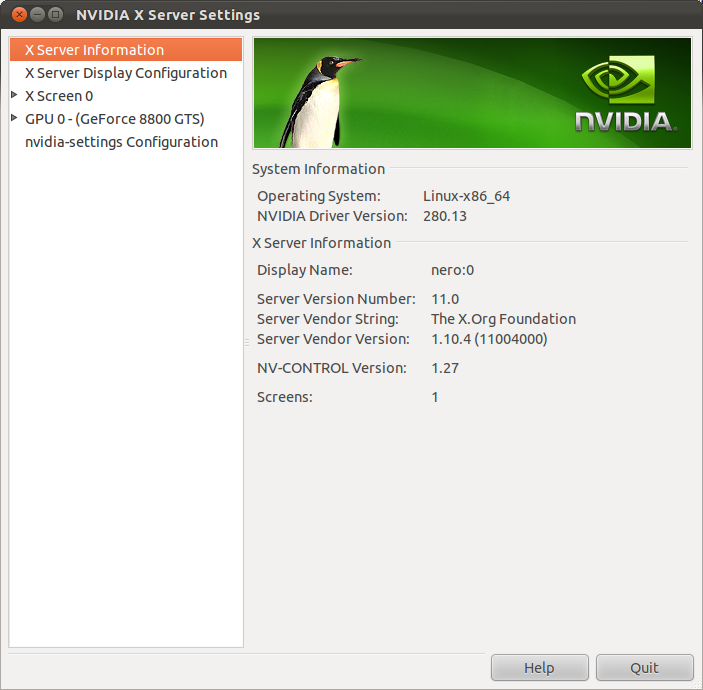
By running sudo nvidia-settings in a terminal it should bring you up a really nice GUI for you to play around with instead of back in the early edditions where everything relied on the xorg.conf file to make x work.
Upon running the command above in a terminal, as long as you are in the sudoers file then you should be able to see something that looks like this:

Nvidia Settings
Now all you need to do is click on the X Server Display Configuration option and it should show you your detected monitors and their layouts.
The next part is pretty self explanatory, you want to make sure that you have the monitor layout correct (you can drag and drop the boxes to correct if necessary) and then make sure the Configuration dropdown is set to TwinView, then set one of your displays as your primary display, hit apply (this will apply the settings it can at the moment), after the screens cycled and come back on you should now have a partially working dual screen setup.
To finish the job you will need to hit the save to X Configuration File button, to make sure that the actual xorg.conf file is updated with all the changes you have made in the nvidia GUI.
Now that the xorg.conf is saved you will need to restart X, easiest way is to log in and out otherwise you can drop back into a terminal and insert the command killall -u <username>
You should be able to log back in, and have fully functioning twinview monitors in ubuntu. In an effort to test this works, you should be able to maximise a application window and it should open fully in one display only. The same should be possible with your other display.
no comments | tags: ATI, gui, nvidia, twinview, ubuntu, x server, xorg | posted in Technical Discovery
Nov
2
2011
Usually you aren’t required to even think about the eMMC chip, what it does or what consequences a specific action has on it until you break it.
This is when things go wrong:
E:Can't mount /cache/recovery/command
E:Can't mount /cache/recovery/log
E:Can't open /cache/recovery/log
E:Can't mount /cache/recovery/last_log
E:Can't open /cache/recovery/last_log
Now luckily I’ve only ever had one failure of a chip and that was with a G1 which basically couldn’t take any of the re-building any more and just gave up. What I will say is that before you go jumping into anything regarding replacing the chip, or following another persons advice I would seriously read up on all that you can that is online. There are thousands of postings on the internet where people have had problems and been able to resolve them without having to take the phone apart and replace the chip.
Plenty of people have experienced what you are experiencing so the best port of call is to find a nice friendly forum (kind of hard to find now-a-days) and make a post detailing all of the issues.
Now what to do when you are posting all the information regarding the phone you have, model, age, firmware version. If you have adb set up on your computer – which I would expect you to have if you were flashing roms, what to do would be to enter into recovery mode, plug the phone into the PC, and open up a command prompt on the pc. Now you want to connect via adb to the device and once connected run
dmesg | grep mmc0
Now if the output contains this message:
mmc0: failed to get card ready

mmc0: reinit card

mmc0: Starting deferred resume

mmc0: Deferred resume failed
Then I’m afraid there isn’t much that can be done, if that set of messages rolls into your command window you are basically looking at getting a replacement chip. There are unfortunately no work a rounds to save you from this, no other solutions at all. Basically new phone or new chip – the choice is yours.
For the people that didn’t get that message, remember to post the output in your forum post and you may be able to save your lovely handset.
1 comment | tags: android, chip, eMMc, guide, htc, phone | posted in Technical Discovery