Configuring TwinView Multiple Monitors in Ubuntu Linux [1103]
I’ve come to terms lately that multiple monitors on Ubuntu with all the fancy graphics is really just not as easy as it used to be. Especially with the roll out of the Unity bar and now the upgrades in GNOME – it is becoming harder and harder to be able to configure the x server settings to work just the way you want them to. However putting that to the side you can still easily configure multiple monitors to work in ubuntu even if they don’t have all the fancy graphics.
Since joining the ubuntu force over about 5 years ago now, I’ve had numerous problems with configuring X to work properly and the one thing I have learnt over the time is DO NOT USE ATIÂ GRAPHICSÂ CARDS cause they just don’t work. Stick to what is best in the world, and buy Nvidia 😉
By running sudo nvidia-settings in a terminal it should bring you up a really nice GUI for you to play around with instead of back in the early edditions where everything relied on the xorg.conf file to make x work.
Upon running the command above in a terminal, as long as you are in the sudoers file then you should be able to see something that looks like this:
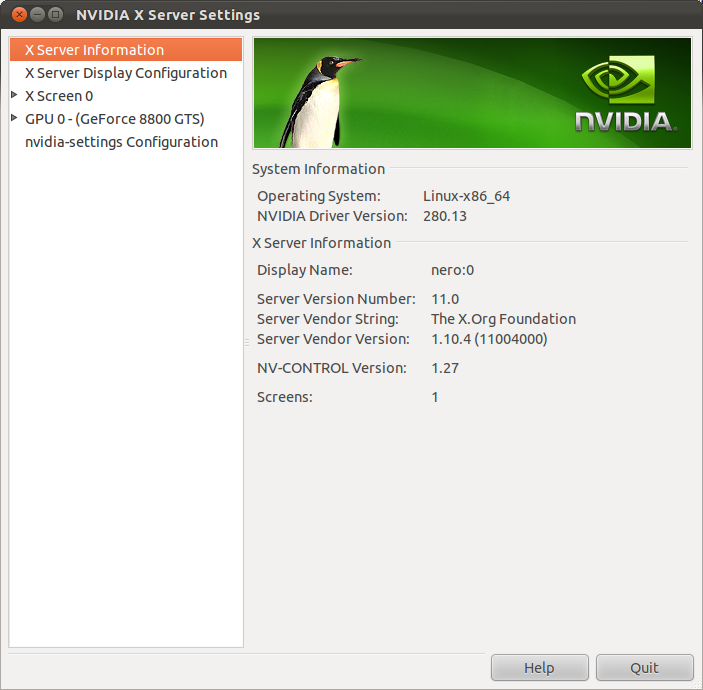
Nvidia Settings
Now all you need to do is click on the X Server Display Configuration option and it should show you your detected monitors and their layouts.
The next part is pretty self explanatory, you want to make sure that you have the monitor layout correct (you can drag and drop the boxes to correct if necessary) and then make sure the Configuration dropdown is set to TwinView, then set one of your displays as your primary display, hit apply (this will apply the settings it can at the moment), after the screens cycled and come back on you should now have a partially working dual screen setup.
To finish the job you will need to hit the save to X Configuration File button, to make sure that the actual xorg.conf file is updated with all the changes you have made in the nvidia GUI.
Now that the xorg.conf is saved you will need to restart X, easiest way is to log in and out otherwise you can drop back into a terminal and insert the command killall -u <username>
You should be able to log back in, and have fully functioning twinview monitors in ubuntu. In an effort to test this works, you should be able to maximise a application window and it should open fully in one display only. The same should be possible with your other display.