Nov 30 2011

Faster Browsing on Ubuntu [1130]

One of the best things with Ubuntu or any flavour of Linux is that you can basically make it do whatever you want it to as long as you put the time and effort in. There was a recurring argument a couple of years ago between myself and a close friend regarding running a Squid cache server on a clients linux server. I had always argued that you know running a centralised Squid server is really dependent on a lot of traffic going through it on a regular basis to build up the cache reserve to make it a useful investment.


However it didn’t matter how much I argued it was never changed, and we just had to put up with it. On a couple occasions I have seen a Squid server slow down the browsing speed on local machines however I have now tested this rigorously on a server within my own personal network to see if it is a worthwhile investment of time and what I found out was that yes for a larger scale distribution this works. You have a lot more traffic going through the server for the Squid system to capture and therefore a much greater amount of data that can be used for calls after the capture time.


Now what I did find out is that instead of caching the pages you access, why not just reduce the resolution time and therefore cut down on at least one of the lengthy time variables it takes to launch a page in your own browser.


To be able to do this on Linux you will need to get dnsmasq installed.


  • sudo apt-get install dnsmasq


Then you will need to configure dnsmasq correctly. The most easiest way to do this will be using the terminal and your favourite editor. My command would look something like this:


  • sudo nano /etc/dnsmasq.conf


You will then need to find the line which says “#listen-address=”. You will need to remove the ‘#’ and add “127.0.0.1” after the ‘=’ to set this variable up correctly. Now make sure you save the changes and exit from the editor you have been using.


Now that that is done you will want to open up the dhclient.conf file “sudo nano /etc/dhcp3/dhclient.conf and add in the line “prepend domain-name-servers 127.0.0.1;” to the file to make your other changes work.


Next is the changes to your resolv.conf file which you may need to change and you will need to add in an additional line at the top of the file. This line should be nameserver 127.0.0.1, after you have added this line in you will need to save the file and exit out of your editor again.


After doing this you will need to restart two services, firstly restart your networking and after that restart dnsmasq to put the new config into use.


After you have done this you should have a nice little dnsmasq setup on your own computer caching the name queries removing the time it takes to resolve the name. You should be able to notice a different in which the pages load however please note that this does not “speed up your connection”, your connection, download and upload will all be the same. Just the method in which the pages are resolved.


As for seeing that this works, you can quickly test this in the terminal by “digging” a domain and after the initial time you do the request. Further ones should show a “Query Time” of 0ms.


Nov 9 2011

Classic Desktop in Ubuntu 11.10 [1109]

From one technical person to another – if you are like me and totally disagree, hate or are just generally annoyed by the unity tool kit that has recently added to the more recent releases to Ubuntu Desktop (I think starting from 11.04), then you will probably either want the option to drop back to the classic Gnome desktop or get rid of unity completely.

Luckily for users that run 11.04 you can actually change your session to use the classic Gnome Desktop, however for the majority of users that have probably upgraded to 11.10 already you will have found out that you are stuck with the unity desktop. And to clear up the whole graphical matter that has been discussed several times – unity is 2D, so if you want to do anything fancy using 3D effects then you no longer can (unless you hack it to force it – this is plausible and works sort of!)


Nicely for us old school fans of ubuntu and not the new “indie” kids of ubuntu you can still install the Gnome desktop through the repositories.

You can install the classic Gnome desktop by installing the “gnome-panel” package:

sudo apt-get install gnome-panel


Once installed all you need to do is change the session on the log in screen to show “GNOME classic” (found under the gear icon on the login screen). You will now be back in your lovely land of GNOME classic (to a point), with top and bottom configurable panels, access to the very lovely Compiz window manager to make your windows do the silly things they aren’t even required to do and just make life that little bit easier for you. Fair enough it won’t be back to the very very original classic desktop – but using this will allow the developers to work out the problems with unity and make them better. Please note that


Obviously that is as simple as it gets, you will notice subtle differences in the GUI from previous installs only because we are now on Gnome 3 and things should really be improving.


In terms of ubuntu improving what it does, I would really like to host a sort of forum to get an understanding whether people like the newer editions of ubuntu with the unity tool kit, or if ubuntu is working on more design than programming now a days?


Any opinions are valid, and I would really like to hear about them.


Thanks


Nov 5 2011

Scrolling Speed in Ubuntu Linux [1105]

Firstly this is going to be a real short thing – it is firework night after all and I have places to be but none the less I need to keep up with this.


I’m not exactly sure why this has suddenly affected me, maybe the recent change in my peripherals that I use on a daily basis however some people may have noticed that the scroll wheel within ubuntu doesn’t really scroll anywhere fast.


Now I thought ok this will be a really simple fix, going into the system settings then mouse/pointer options and changing the number of lines the scroll wheel scrolls. However unlike shiny Windows, ubuntu doesn’t have this option and therefore you are left with a rather annoying slow scroll speed. Coming from a background of knowledge in regards to ripping things apart and putting them together I tried to think of ways to be able to change the sensitivity of this input. My first thought was trying to work out how I would be able to capture cat /dev/input/event4 and then manipulate that action to change the speed of the scroll action. Discovering that this was pretty much a long drawn out task I discovered that by possibly editing your xorg.conf I possibly could assign an option and then set that variable.


So that’s what I did, I edited my xorg.conf file to include Option "VertScrollDelta" "10" in it underneath the section defined for mouse options. So willingly I saved my xorg file, restarted x and hoped it had work. Didn’t exactly go as planned, well I say this but there was really no difference. Nothing had changed at all, it was better it wasn’t worse. So I gave up for the moment. Looking across forums regarding this item it seems it has actually been an outstanding bug in GNOME for about nine years, one they are yet to fix.


As it is very frustrating to pretty much have to attack your mouse to get to the bottom of a page, I think I will keep this in my “fix, to-do” list so maybe one day I can sit down and actually get the time to look at the problem straight on and try and see if I can find a work around. Maybe one day.


Nov 3 2011

Configuring TwinView Multiple Monitors in Ubuntu Linux [1103]

I’ve come to terms lately that multiple monitors on Ubuntu with all the fancy graphics is really just not as easy as it used to be. Especially with the roll out of the Unity bar and now the upgrades in GNOME – it is becoming harder and harder to be able to configure the x server settings to work just the way you want them to. However putting that to the side you can still easily configure multiple monitors to work in ubuntu even if they don’t have all the fancy graphics.

Since joining the ubuntu force over about 5 years ago now, I’ve had numerous problems with configuring X to work properly and the one thing I have learnt over the time is DO NOT USE ATI GRAPHICS CARDS cause they just don’t work. Stick to what is best in the world, and buy Nvidia 😉

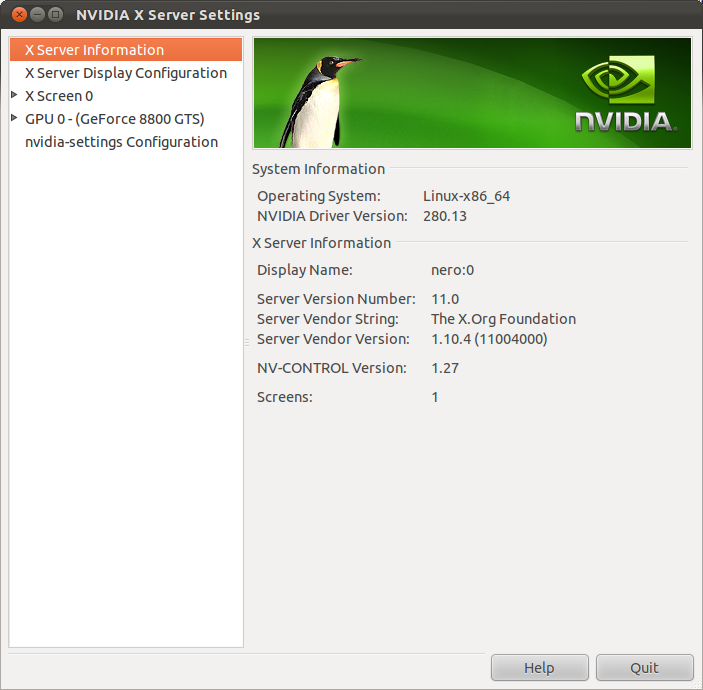
By running sudo nvidia-settings in a terminal it should bring you up a really nice GUI for you to play around with instead of back in the early edditions where everything relied on the xorg.conf file to make x work.

Upon running the command above in a terminal, as long as you are in the sudoers file then you should be able to see something that looks like this:

Nvidia Settings

Now all you need to do is click on the X Server Display Configuration option and it should show you your detected monitors and their layouts.

The next part is pretty self explanatory, you want to make sure that you have the monitor layout correct (you can drag and drop the boxes to correct if necessary) and then make sure the Configuration dropdown is set to TwinView, then set one of your displays as your primary display, hit apply (this will apply the settings it can at the moment), after the screens cycled and come back on you should now have a partially working dual screen setup.

To finish the job you will need to hit the save to X Configuration File button, to make sure that the actual xorg.conf file is updated with all the changes you have made in the nvidia GUI.

Now that the xorg.conf is saved you will need to restart X, easiest way is to log in and out otherwise you can drop back into a terminal and insert the command killall -u <username>

You should be able to log back in, and have fully functioning twinview monitors in ubuntu. In an effort to test this works, you should be able to maximise a application window and it should open fully in one display only. The same should be possible with your other display.


Jun 7 2011

Your Own Private Dropbox

Ever wanted to have a dropbox? Ever wanted to have a place where you could store, access and search through your local files held on one computer all over the world and don´t have to worry about data recovery again?

The definition of the dropbox service is that you have access to a web-based file hosting service that is operated by Dropbox, Inc. that uses cloud computing to enable users to store and share files and folders with others across the internet using file synchronization.

So firstly let’s go into a bit of background on the service. It was originally founded in 2007 by Drew Houston and Arash Ferdowsi, there are two service based plans. There is a free and a paid service, each with varying options or conditions. Based on the free service you are allowed to privately host anything up to 2GB in files which can be accessed on a number of differing platforms; everything from Windows, Mac OS X, linux and also a range of mobile devices including Android, Windows, IOS and Blackberry. Now because this is fully hosted on the cloud you can also access any of your files using the internet browser when there is no local client for you to use.

What I am going to detail below is an accurate and thorough guide to running your own private dropbox service without any of the limitations you could encounter while access it through a paid service. You could say that this is true cloud computing and the only limit, is the size of hard drive you store the files on to.But you can also search online for a carbonite offer code

Now before I begin to go into details, I will warn you, this guide will be quite technical. For post people you will not feel the need to ever use this guide or use any of the features out of it. For everyone else technically based or that has an interest in doing something really cool and exciting, join me as we go through how to make something wonderful for yourself and you family to enjoy!

Requirements:

  • Preferably your own dedicated server with ssh access, or access to one at least
  • A Windows, Linux or Mac OSX client (whatever machine you want to test on)
  • Unison server and client software
  • Glade/Gtk+
  • freesshd

Another introduction to make. Unision is the handler that we will be using to deal with the task that we have in hand. It is a file synchronization toolkit that can be installed on multiple different file systems to sync files and directories across multiple platforms. In a sense it forms the same attributes as rsync in the way that it can manipulate, update and sync files where there are specific differences within a file structure. However it can also deal with something rsync cannot deal with, the deletion of files and directories. I have seem this happen myself many a time where rsync can’t deal with delete commands and therefore you need to run “rm -f foo.bar” to remove the file before being able to proceed.

We will rely on Unison to handle and manage the connections and security including the authentication during transfer.

Step One:

Install the Unison server on the host, in my case Ubuntu 11.04


sudo apt-get install unison


Simple as that….

If you wish you can unpack and build from source, but seeing as it is a properly developed package I see no reason to muck around with configurations when it is already all set up for you.

Step Two:

Identify the client machine that you are going to be using, in my case a brand new HP Laptop running Windows 7.

Install GTK for Windows– after a lot of hunting around I was able to find a suitable installer as part of a project called “Glade” follow this link Installer .

Step Three:

Install an ssh server on your windows machine to connect to the host – freeSSHd is what I used here, allowing you to technically run an ssh command from your cmd.exe shell allowing you to connect directly to your linux box.

Once unpacked move to the Windows directory and run the GUI that goes with it. You will be required to set up a user for this system to actually work and so that it can use the shell.

Ensure that it is installed as a service, verify that the ports are open on your firewall application and that you restart your machine for them all to take effect.

Step Four:

Configure your environmental variables – Unison expects to find “Home”, but as you are running in windows you will need to configure this as “$C” for your C: drive.

Step Five:

Download and install PuTTY and Plink.exe, put these into your Windows directory and download the Unison-ssh wrapper and verify it is in you Windows directory as well – The ssh wrapper will be what determines how to direct the ssh calls that will be made by unison on the command line.

Step Six:

Download and unpack the Unison binaries for windows. At this point your best move is to rename them to “unison-gui” and “unison”. Ensure that these are in your path and that the text version is called “unison” as that is what the server will be looking for.

N.B. Ensure that you install the same binary version as what you are running on the host server, otherwise there will be a mas-match and although there is documentation to say you can use the version no flag it doesn’t work. I went round in circles chasing my tail trying to find the problem when it was the version number.

Step Sever:

Test out your ssh connection – You should be able to open up a command prompt and enter

“ssh -l username -pw password server “unison-version” “

This should return the current version of unison hosted on your server.

Step Eight:

Test your unison connection – you can do this by adding in the “-testserver” parameter:


“ssh -testserver -sshargs “-l username -pw password” c: ssh://server//”

It should give you the response something like: “Connected [//server1/c:/ → //server2/c:/]

Step Nine:

At this point in the process I would encourage you to run “plink.exe” in your command prompt window as it saves any uncontrollable problems when unison does its initial sync.

Step Ten:

Run PuTTY and set up the host configuration with your username and save the configuration so that Unison will automatically connect. I would also encourage you to set up private key authentication, which would eliminate the need for you to enter a password every time you wanted to perform a sync. There are plenty of guides on the internet, so I won’t go into details it is pretty simple to do, you just need to find an easy explanation.

Step Eleven:

Run the Unison-GUI to configure your “share” directory and the user that will be syncing with the server. The menu here is pretty self explanatory. When you are setting up the host details ensure that you set it to use ssh as the method and detail the user name and also instead of using the full server address you can use what you have got it saved in PuTTY as.

Step Twelve:

Perform your first sync and thats it. Done! You are now the proud owner of a fully functional drop box servive that you control what you can do with. The world is in your hands, open you mind up free your soul and go do something you have never done before!! Live!

For mobile device synchronization I would suggesting finding a client that can run rsync, and for accessing files through the browser you will need to install a file explorer front end onto your server and ensure that port 80 is open to your server from the firewall/router.